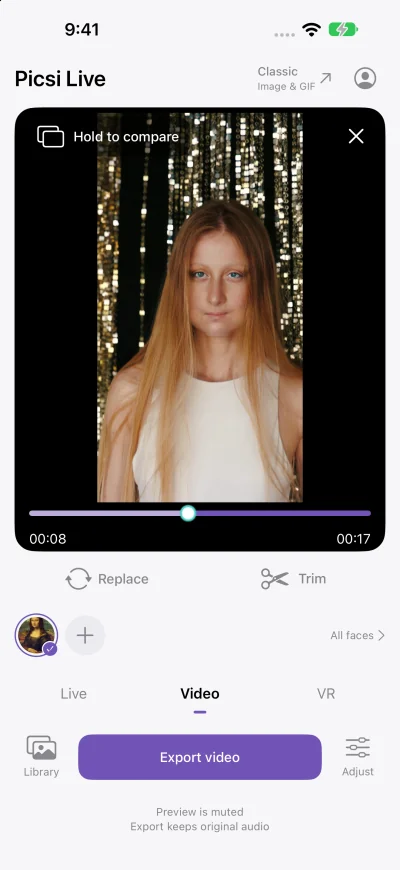
Give a video a new face
Import from Photos, trim and adjust before exporting. Video swaps the largest detected face; exports retain the source audio when present. Keep the app in the foreground during export.
Choose a face and see the swap as you shoot. Record a moment on your iPhone or iPad, save it to Library, and share it when you are ready.
iOS user guide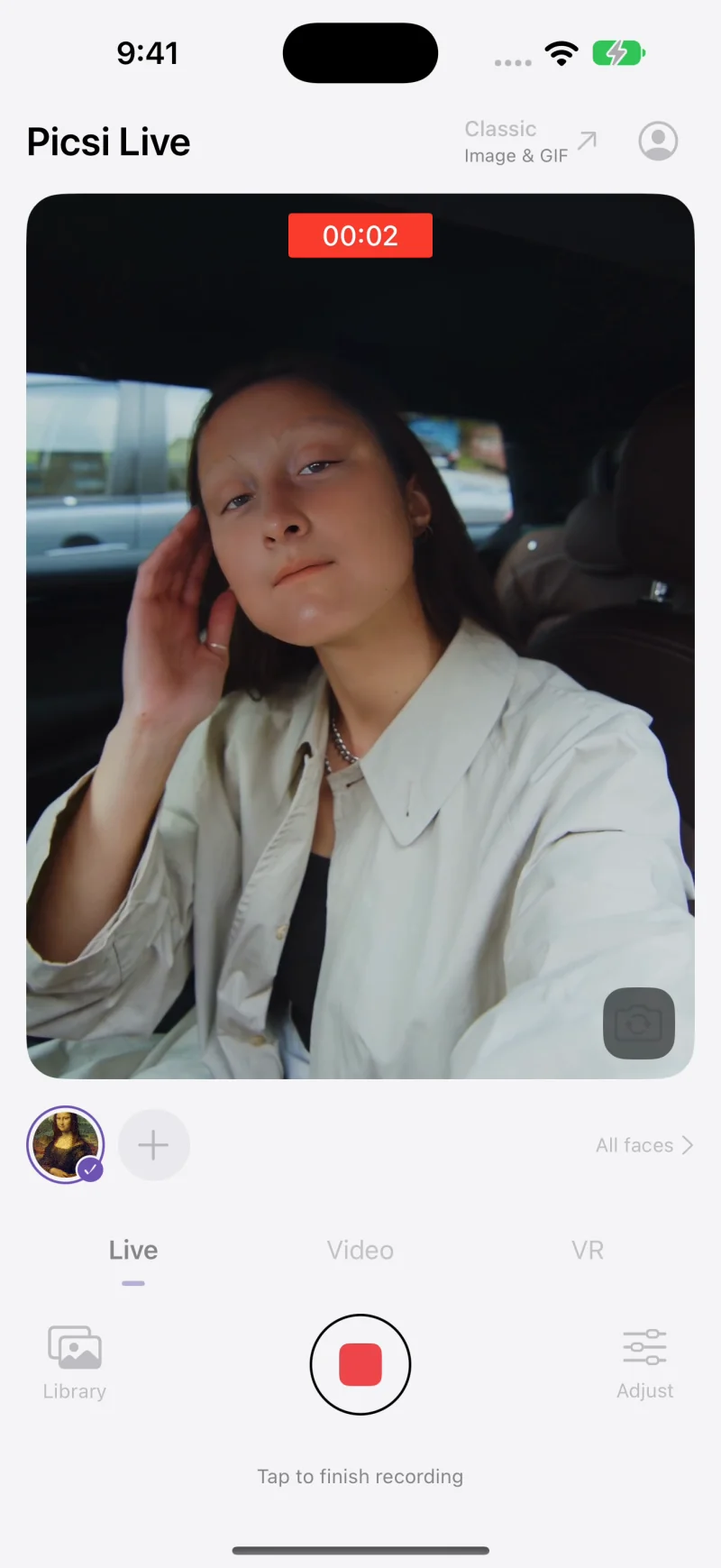
Open Live and choose a saved face, or add a new one. Initial setup and face preparation need an internet connection.
Check the camera preview, allow microphone access and tap Record. Tap again to stop; successful recordings save to Library.
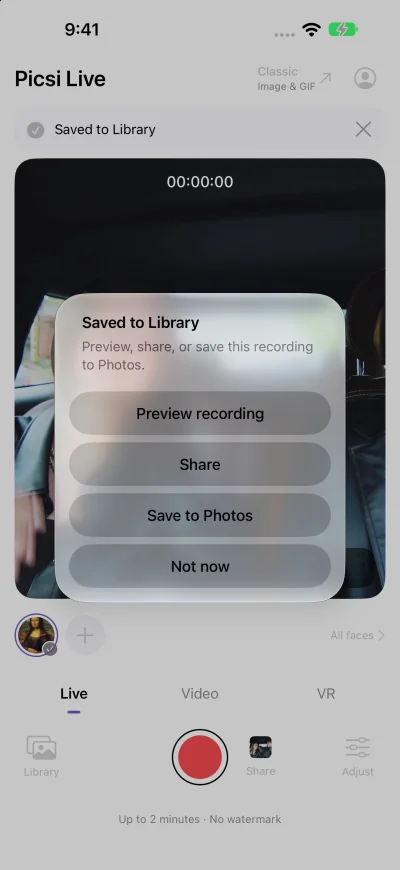
Preview your saved clip, then open the iOS share sheet. Choose an available app, such as WhatsApp, and complete the sharing steps there.
Sharing options depend on the apps installed on your device. Picsi.Ai does not send clips automatically.
Import from Photos, trim and adjust before exporting. Video swaps the largest detected face; exports retain the source audio when present. Keep the app in the foreground during export.
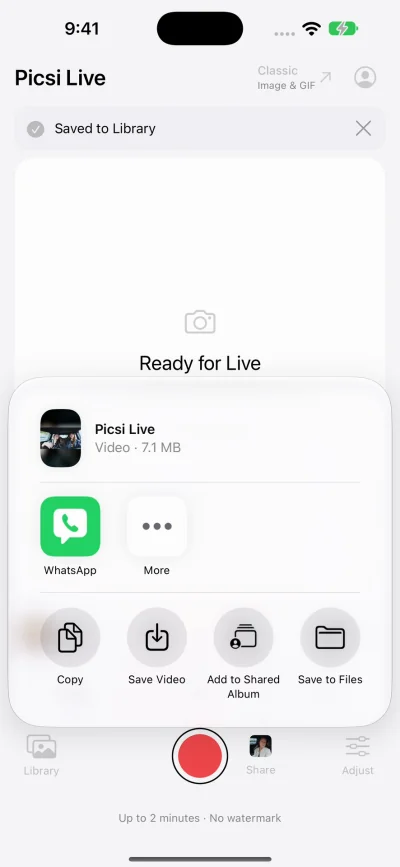
Your recording stays in Library even if you dismiss the sharing prompt. Save a separate copy to Photos, or use the shortcut beside Record to share the latest recording.
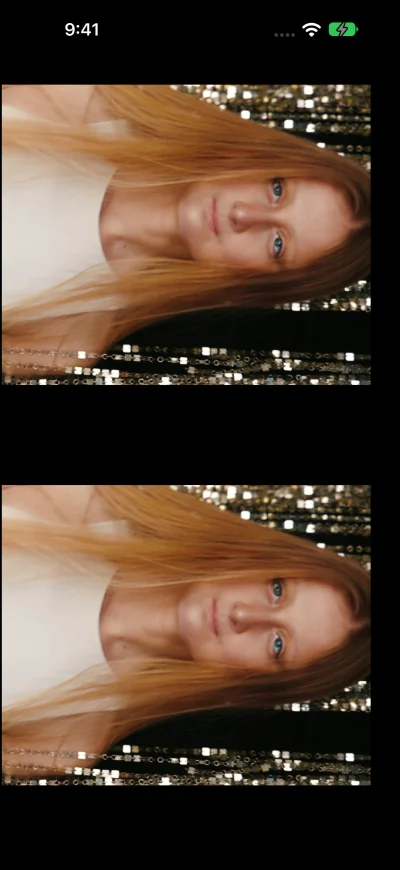
View Live Camera or Video with controls for eye spacing, viewing distance and scale. Use a headset compatible with your phone and keep the rear camera uncovered for Live Camera.
Import your own media from Photos. Paid photo creation matches source slots to target faces from left to right; empty slots keep the original face. GIFs replace the largest detected face. The former iOS template browser is no longer available.
English interface examples. Screens showing 2-minute recording and no watermark illustrate paid-plan benefits.
Adaptive layouts for iPhone and iPad, including iPhone Duo’s inner and outer displays. The app interface and built-in help support 15 languages.
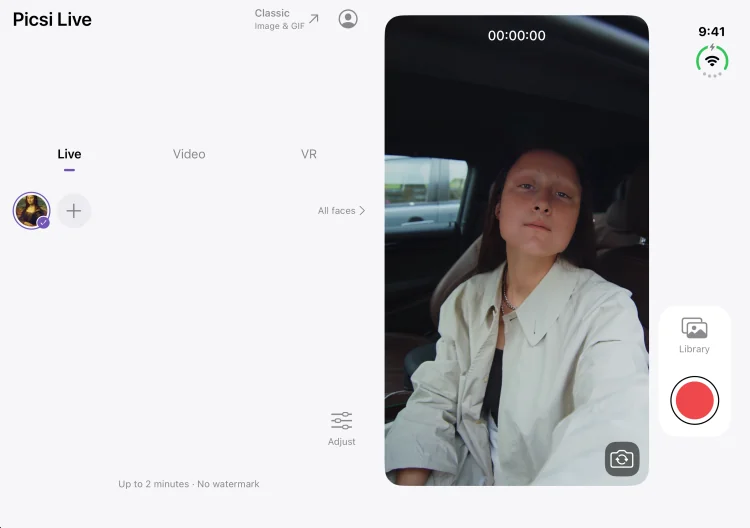
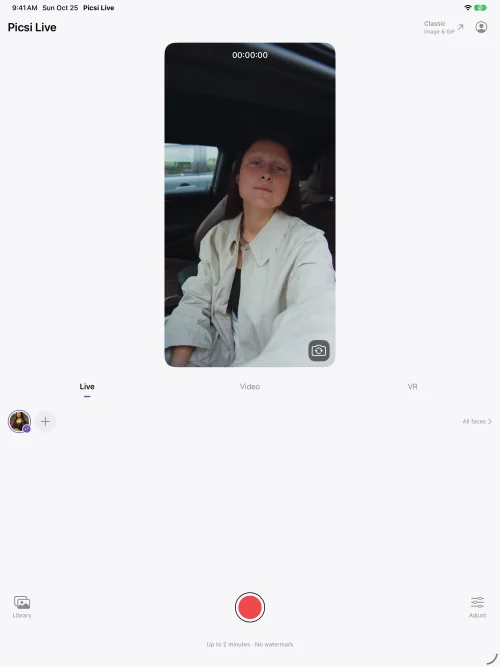
English interface examples. Screens showing 2-minute recording and no watermark illustrate paid-plan benefits.
Choose the app for your device. Features and creation limits differ by platform.
Free: Live recordings and video exports up to 5 seconds each; GIFs up to 2 seconds and 200 frames. Basic, Pro and Ultra: recordings and video exports up to 2 minutes each; GIFs up to 10 seconds, with no plan-based frame limit.
These local creations do not consume credits per operation. Adding new faces and cloud image generation still consume credits under server rules. Free Live, video and GIF outputs have a repeating watermark covering the image.
Local Live recording, video export and GIF creation have no per-use or time-based credit charge. Reuse existing usable faces even at zero credits, within your active plan limits. Importing the same image as a new face is processed separately and charged under server rules.
Free local Live, video and GIF outputs have a repeating watermark covering the frame. Basic, Pro and Ultra outputs have no watermark.

 Scan with your iPhone camera to get the app


Get the app for iPhone or Mac and log in with your Picsi.Ai account.